
- Help centre
- Getting started
Installing EventEngine in your portal
Connect EventEngine to your HubSpot portal, approve the access it needs, and start your subscription. About ten minutes.
Installing the app
Step 1: Start the install
Go to app.eventenginepro.com and click Sign up.
You land on the Install EventEngine page. Click the green Install EventEngine button.
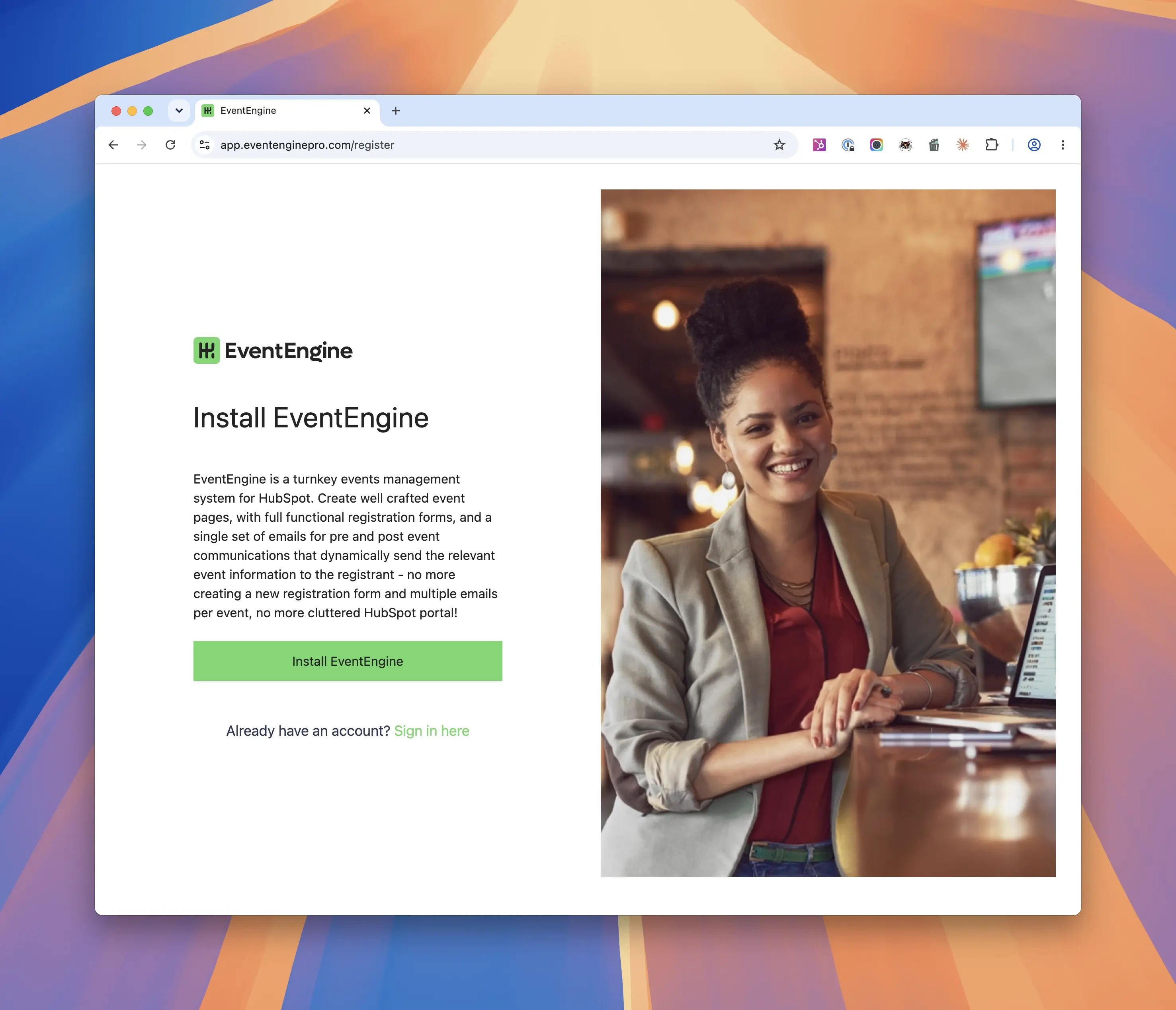
Your account is created through the HubSpot connection in the next step, so the button takes you straight into HubSpot.
Step 2: Connect your HubSpot account
You're now on HubSpot's "Connecting EventEngine to HubSpot" screen.
- Choose your account. HubSpot lists every account you have access to. If the list is long, use the search box to filter by name, domain or portal ID. Select yours and click Choose Account.
- Review the permissions. HubSpot shows everything EventEngine needs. You'll also see a red "You're connecting an unverified app" banner. That's expected. EventEngine installs by direct link rather than through the public Marketplace listing, so HubSpot flags it. It's safe to continue.
- Scroll down and click Connect app.
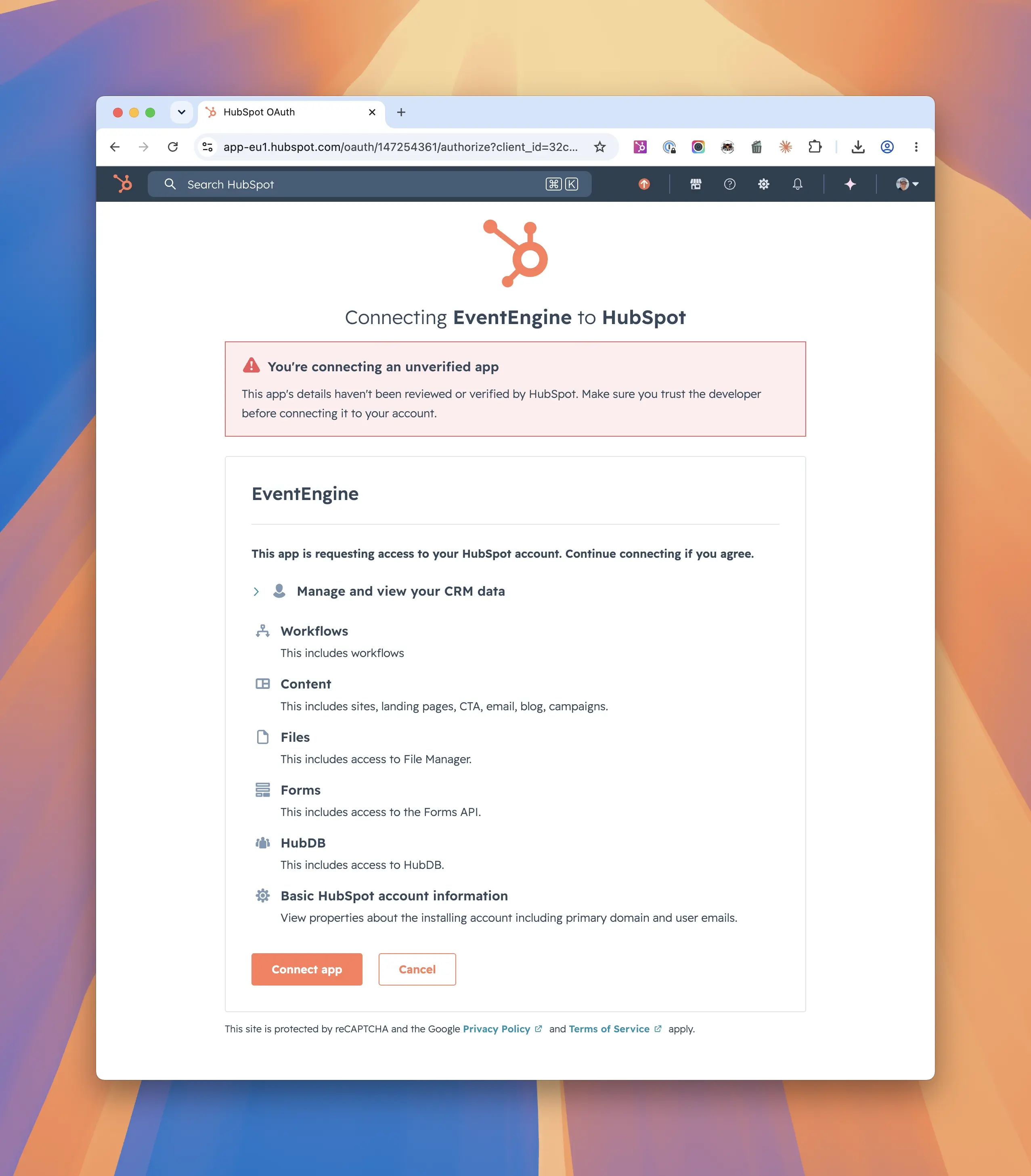
The permissions list is long because EventEngine runs a lot of your portal for you. It creates its own Registrations object so every registration is tracked against a contact, the workflow that sends your event emails, the forms people register on, and the HubDB table that powers your events page. Each permission maps to one of those. The full list of what gets created is under How to check it worked below.
Step 3: Create your EventEngine login
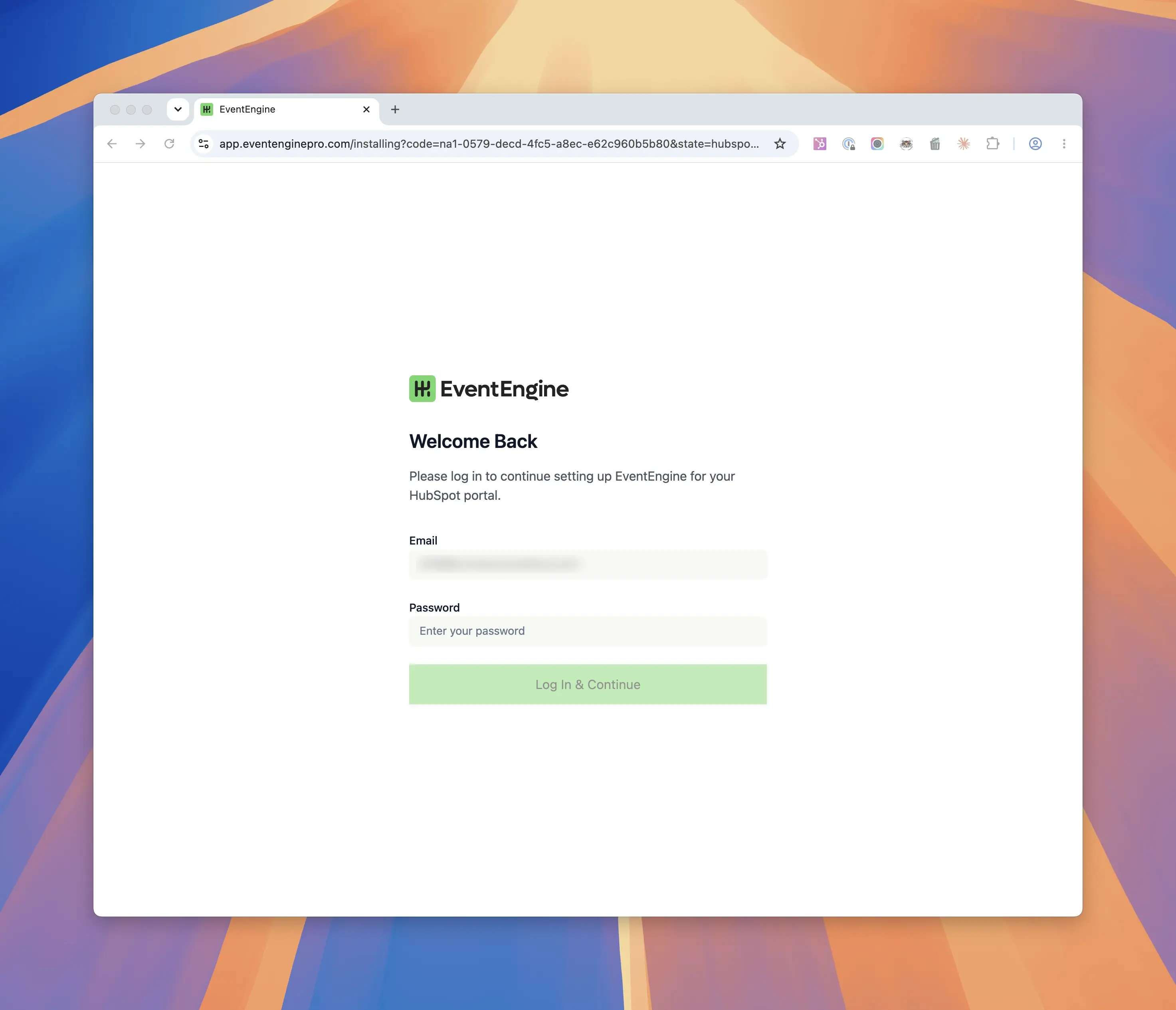
HubSpot sends you back to EventEngine to finish setting up, with your email already filled in.
If you're new, set your password here. If you've had an account before, you'll see "Welcome back" and can enter the one you have.
Click Log In & Continue.
Step 4: Start your subscription
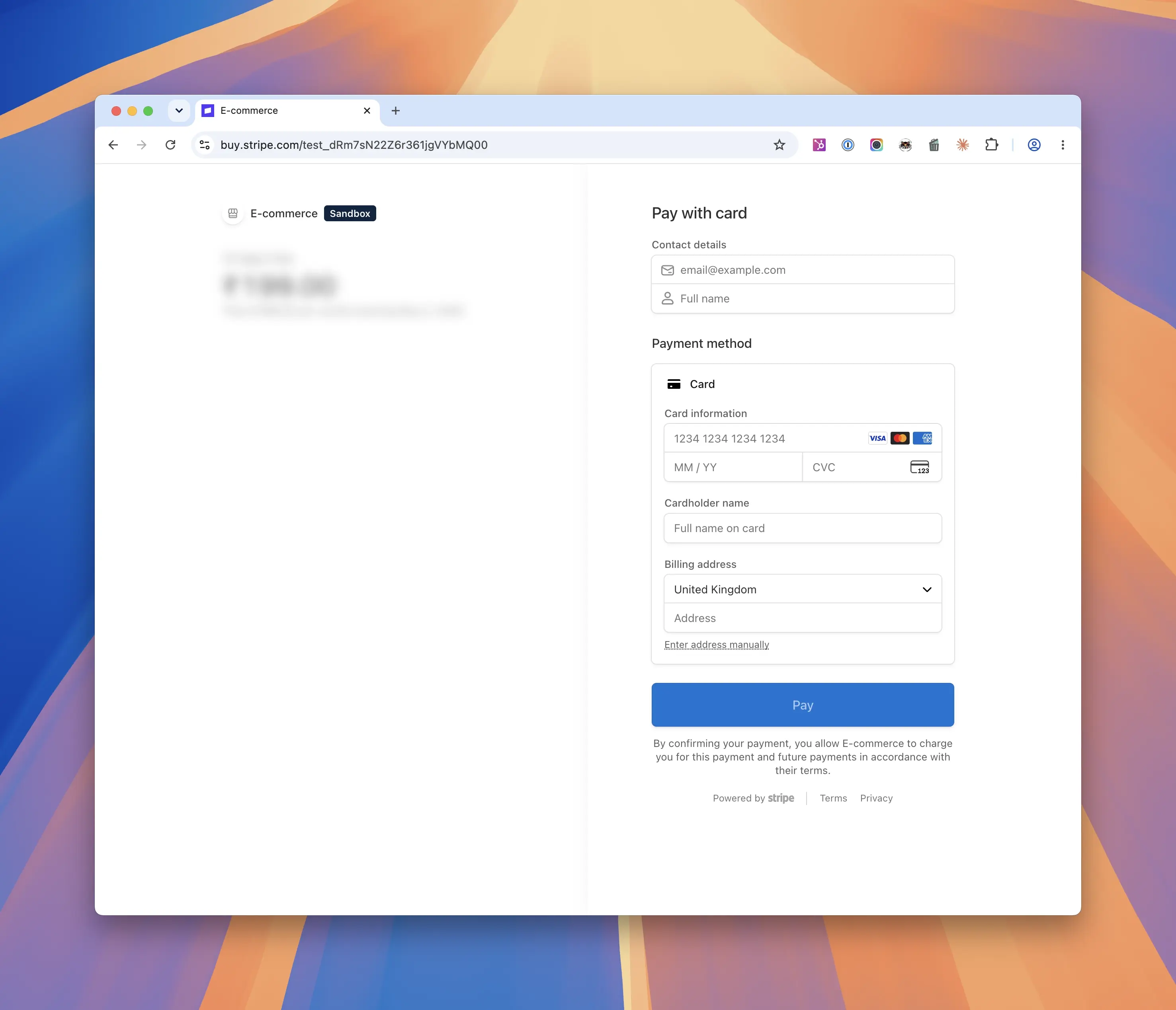
Next is the Stripe checkout.
The plan is $249 a month with a 30 day free trial. Enter your contact and card details and click Pay. Nothing is charged until the trial ends, and you can cancel at any time from your account settings.
Step 5: Two short setup screens
After payment EventEngine asks you two things before it builds anything.
The first screen is Categories and Divisions, which is how you'll group your events. Type each one and press Enter. You can add more later from the event form, so a short list is fine for now. Setting your categories and divisions explains what each one does.
The second is Email Settings: the name your event emails come from, the time of day they send, and how many days before and after the event the reminders and follow-up go. The defaults are sensible and you can change them later in the app. They're covered in Confirmation and reminder emails.
Click Next on each. EventEngine then builds everything in your portal. You'll see "Creating properties" and "Creating assets" go past, then a What's next? checklist that walks through the HubSpot half of the setup. Your dashboard is on the other side of it.
How to check it worked
Before you go any further, check the install completed. In HubSpot you should now have:
- EventEngine properties on the Marketing Event object, including Registration Method and Role
- Ten email templates in Marketing › Email, all sitting as drafts, each named "EventEngine - " followed by the email's purpose
- A workflow called EventEngine Email Communications in Automation › Workflows, switched off
- The EventEngine Listing and EventEngine Single modules in your website page editor
- A HubDB table called
eventengine-pages
If any of those are missing, stop and email support@eventenginepro.com with your portal ID. That's an install problem, and everything you do after it will look broken for the wrong reason.
What happens next
Two things still stand between your first event and your audience, and both are one-time jobs inside HubSpot.
Your emails have installed as drafts, and the workflow that sends them stays off until they're published. And your events need a page on your website to appear on, which doesn't exist yet.
Confirmation and reminder emails and Setting up your events pages cover both, and the setup guide puts everything in order.
If you'd rather not do the HubSpot half yourself, email support@eventenginepro.com and we'll do it for you, free of charge.
Troubleshooting
"You're connecting an unverified app" warning. Expected. EventEngine installs by direct link, not through the Marketplace listing, and HubSpot flags any app installed that way. It's safe to continue.
The install finished but something on the checklist is missing. Don't work around it. Email support@eventenginepro.com with your portal ID, because a partial install causes problems later that look like feature faults.
Your emails send but the events page won't build, or the other way round. Check the subscriptions under Before you start. A portal with Content Hub Pro but no Marketing Hub Pro installs cleanly and then can't turn the email workflow on.